


Connect O-Kam APP Video Tutorial
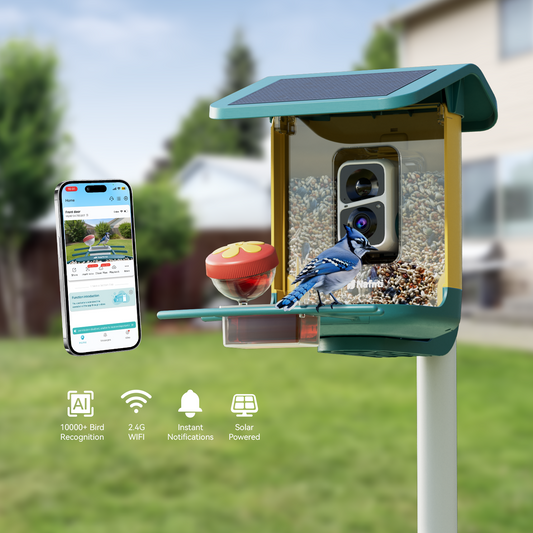
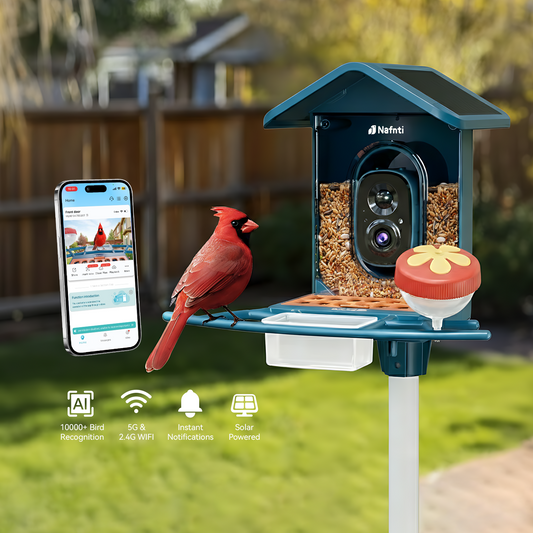
1.Nafnti Bird Feeder with Camera Connection Guide
via Bluetooth connection
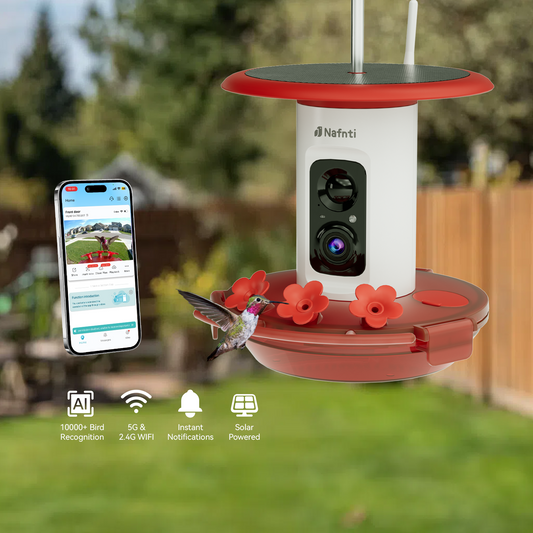
2.Nafnti Hummingbird Feeder with Camera Connection Guide
via Bluetooth connection
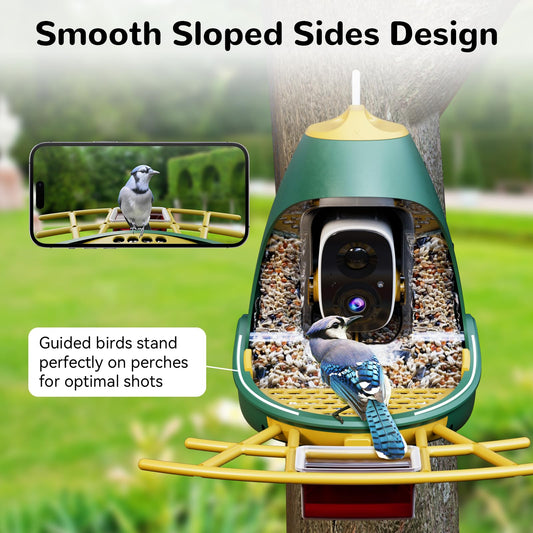
3.Nafnti Bird Feeder with Camera Connection Guide
via Scanning QR Code
Setup Instructions
How to Connect the Camera (via Bluetooth)
-
Install the Antenna:Important: Ensure the antenna is securely installed before connecting the camera.
-
Download the App: Download and sign up for the O-Kam APP on your smartphone.
-
Enable Bluetooth: Turn on the Bluetooth function in your phone's settings.
-
Enable Location Service: Extremely Important: Turn on your phone's Location function. When the App prompts for location access, please Select "Allow". If declined, Bluetooth devices will not be detectable.
-
Power On the Camera: Press and hold the power button for 3 seconds.
-
Ready Mode: The blue LED will flash, and you will hear: "Please use the app for Wi-Fi configuration."
-
Reset Tip: If the blue LED stays solid, double-press the power button to reset and re-enter connection mode.
-
-
Add Device: Open the App and click the "+" icon. Bluetooth will automatically find the device nearby. Click "Connect".
-
Wi-Fi Setup: Select your Wi-Fi network, enter the correct password, and click "Next."
-
Voice Confirmation: Wait for the voice prompts: "Connecting the Wi-Fi, please wait" followed by "The Wi-Fi connect succeeded."
-
Name Your Device: Customize your device name (e.g., "Backyard Feeder") and click "Next."
-
Success! Congratulations! Your device has been added successfully and is ready to use.
Note:
If the device encounters issues during operation, first use a pin to press the Reset button (or the P button on some models) for 1–3 seconds, The device will restart. If it was previously connected successfully, it will reconnect automatically. If the problem persists, double-press the power button to restore and enter ready-to-connect mode,Then follow the setup instructions to reconnect the device(If the device was previously connected, delete it from the app before reconnecting).
